Node Overview
Image Node
The Image Node connects text and visual inputs to help you generate and iterate on design ideas.
Use it to explore styles, colors, materials, silhouettes, and new visual directions by combining multiple images.
For more details, see the Image Models section.
Text to Image
Enter a text prompt to generate an image.
You can use the footwear dictionary to describe details such as shoe type, material, sole type, and color more precisely.
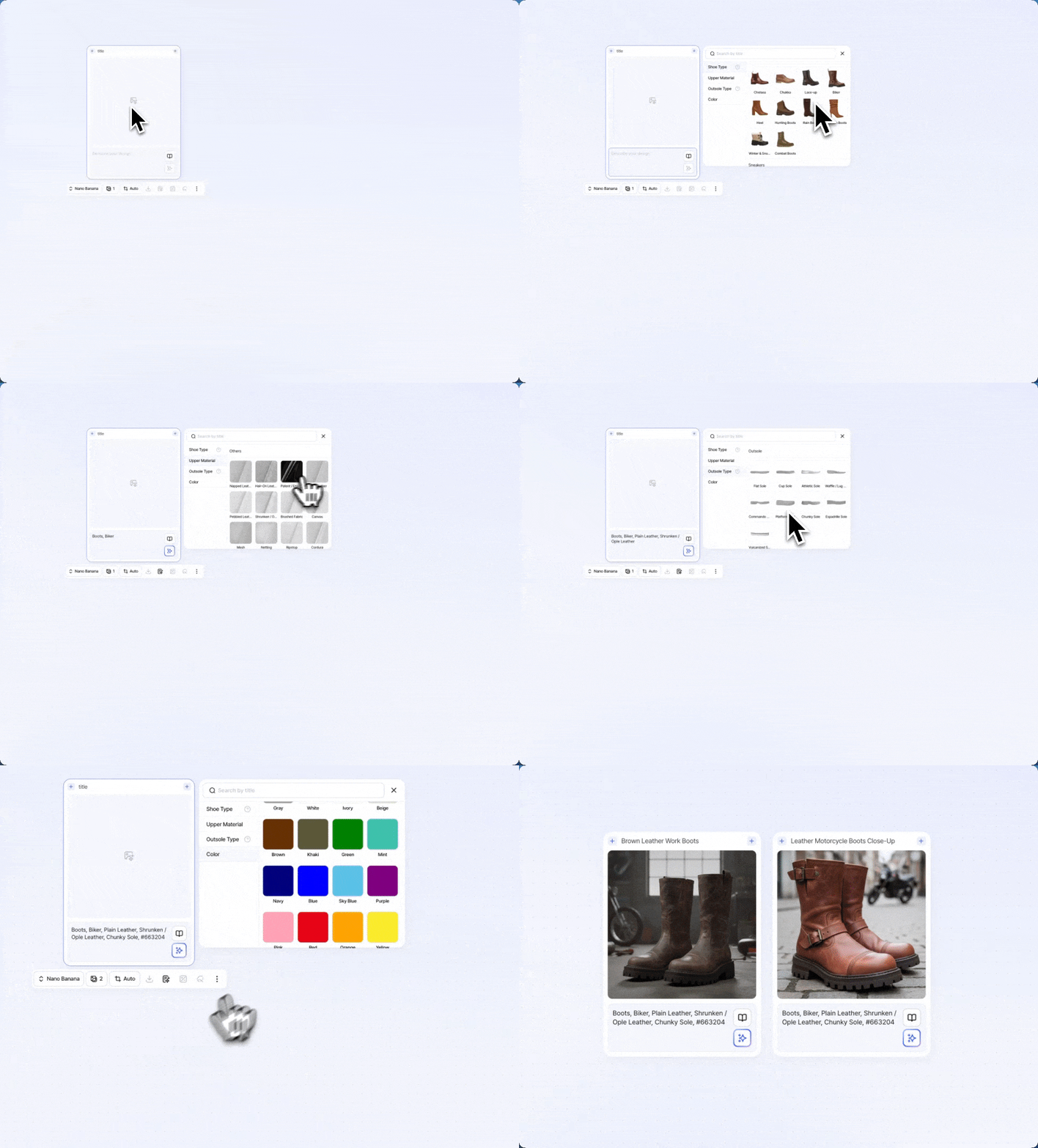
Use Cases: Design concept generation, color and material exploration, presentation renderings
Image to Image
Use one or more images as input to generate a new image.
The result can reflect the form, style, color, or mood of your reference images.
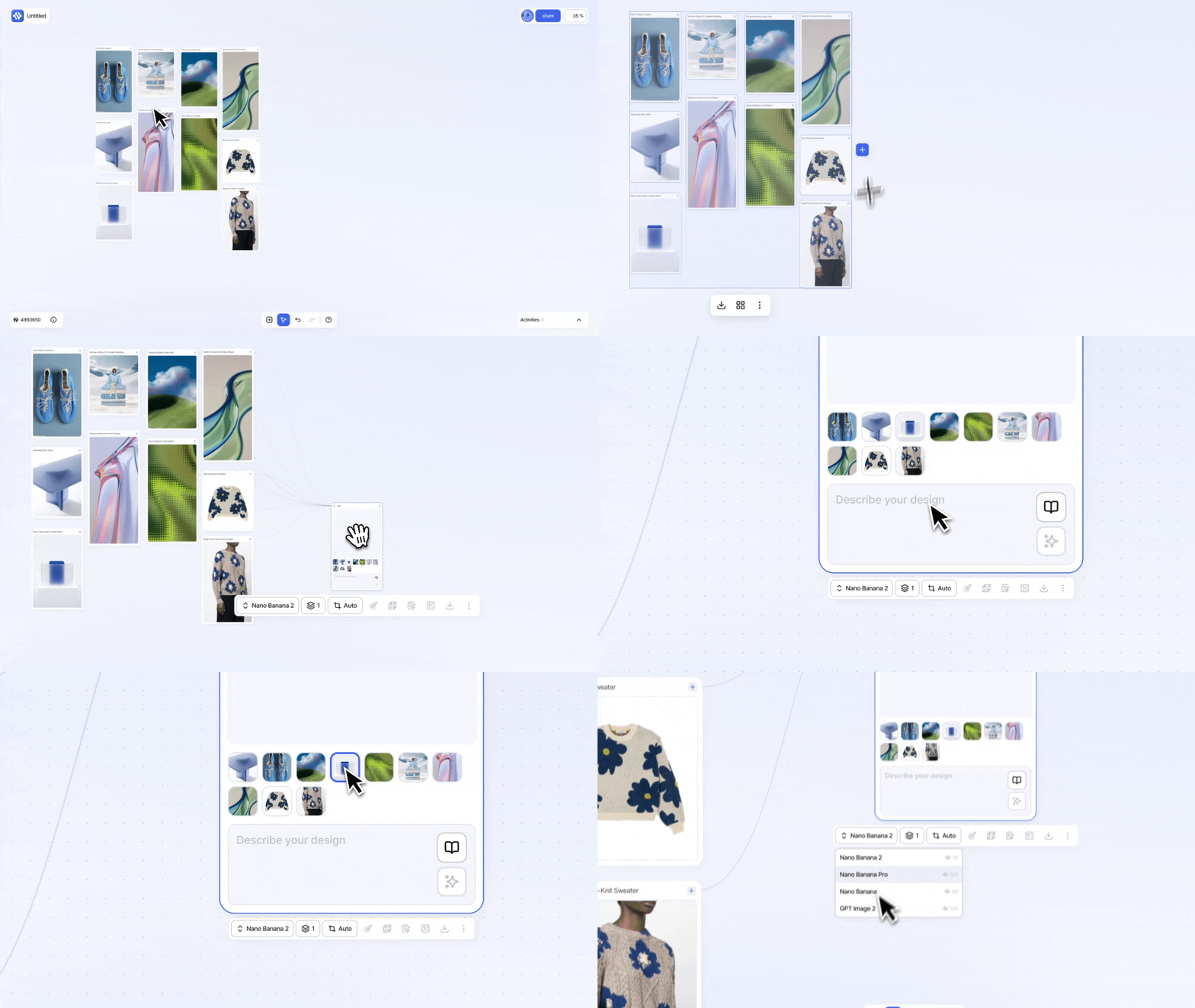
The available model list is automatically filtered based on the number of connected images.
You can connect 1 to 10 images.
Use Cases: Reference-based variations, brand mood adaptation, multi-image composition
Video Node
The Video Node turns static images into motion-based outputs.
Use it to show product angles, movement, and material expression in a more dynamic way for storytelling and presentations.
For more details, see the Video Models section.
Image to Video
Add an image and use a prompt to direct the motion.
The model turns the image into a realistic video and automatically interpolates the frames.
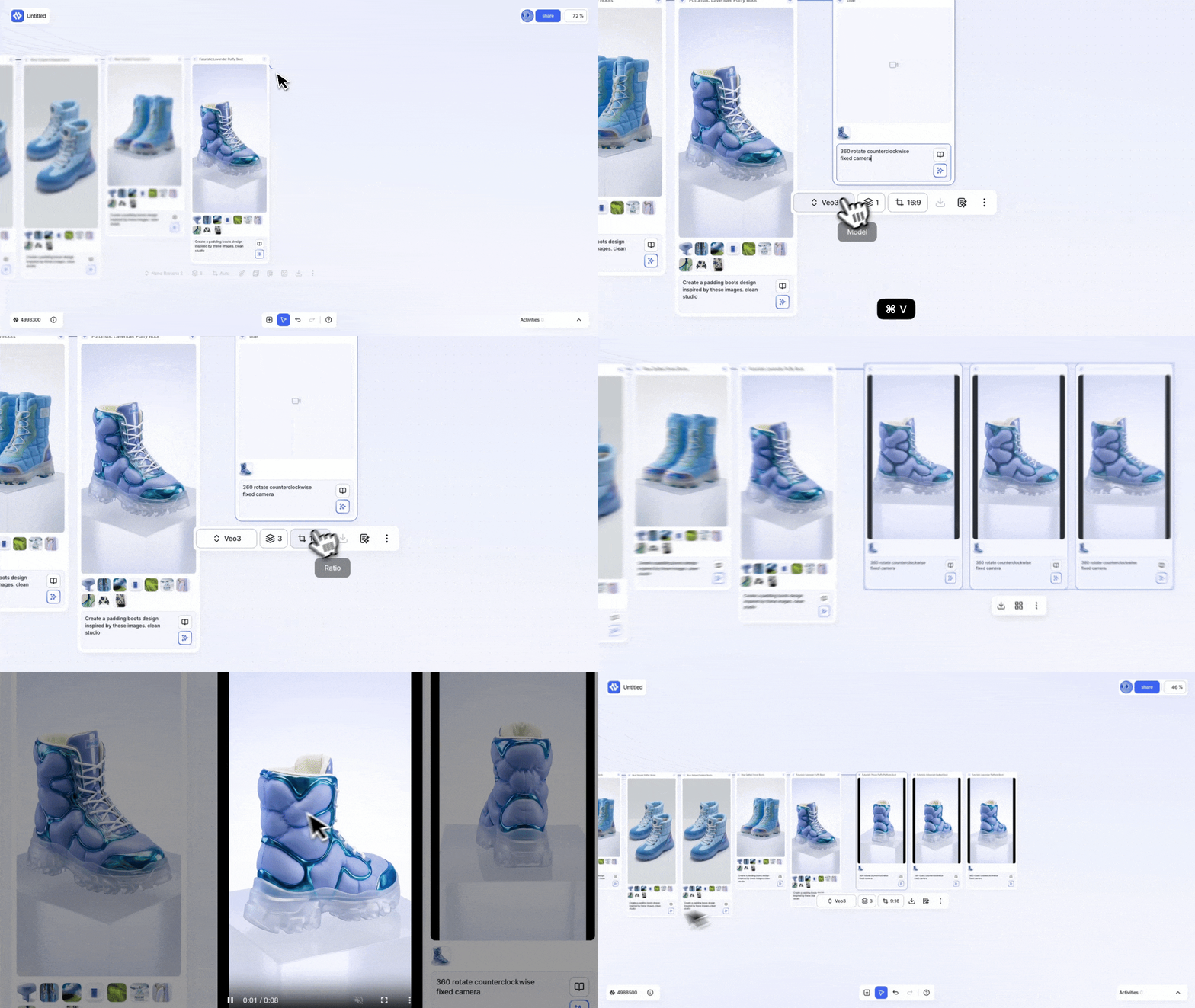
This is a useful way to present a 2D image with a more three-dimensional feel.
The available model list is automatically filtered based on the number of connected images.
You can connect 1 to 5 images.
Use Cases: Product rotation videos, short campaign clips, design presentation videos
Text Node
The Text Node helps you organize text, write prompts, and generate image descriptions.
You can use the generated text again as input for image or video generation.
For more details, see the Text Models section.
Text to Text
Enter a direction or rough idea, and the text model will refine it into a clearer prompt draft.
Use this when you need help writing prompts or turning ideas into more structured language.
Use Cases: Prompt planning, concept copywriting, image-generation descriptions
Image to Text
Convert an image into a text description.
This can help you describe the form, color, material, and branding elements of inspiration images or product designs.
You can also use it to extract the design language of a collection or create prompts from reference images.
Use Cases: Image descriptions, design language extraction, reference-based prompt writing
Resource Node
The Resource Node places your uploaded images onto the canvas.
You can add images by dragging them from your computer or uploading them directly.
You can also copy an image from another browser tab or page and paste it onto the canvas.
Resource Nodes can be used as inputs for image, text, and video generation tasks.
Drag and Drop: Drag an image file from your computer onto the canvas.
Upload: Select and upload an image file.
Copy and Paste: Copy an image from another browser tab or page and paste it onto the canvas.
Connecting a Resource Node
The + handle on the upper-right side of a Resource Node sends the image to another node.
The + input area on the left side of an Image, Text, or Video Node receives that input.
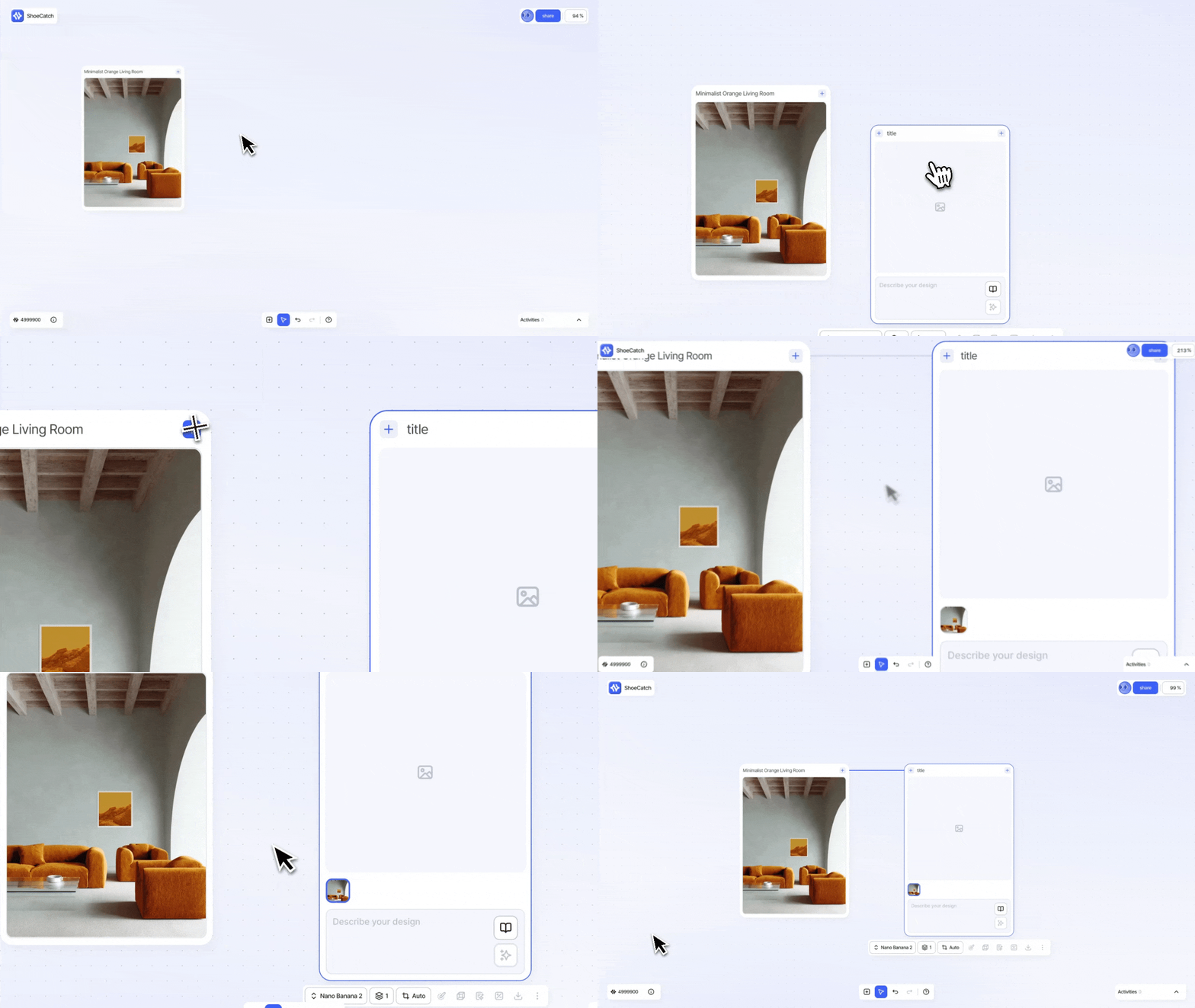
Drag the upper-right + handle of a Resource Node to the left + input area of an Image, Text, or Video Node.
The connected Resource Node will be used as input for the next generation task.
Resource Node → Image Node: Use an uploaded image as a reference to generate a new image.
Resource Node → Text Node: Analyze an uploaded image to generate descriptions, prompts, or design language.
Resource Node → Video Node: Use an uploaded image as a reference to create a video.
Generation Model Options
Each AI model supports a different set of generation options. The controls shown on a generation node change with the selected model.
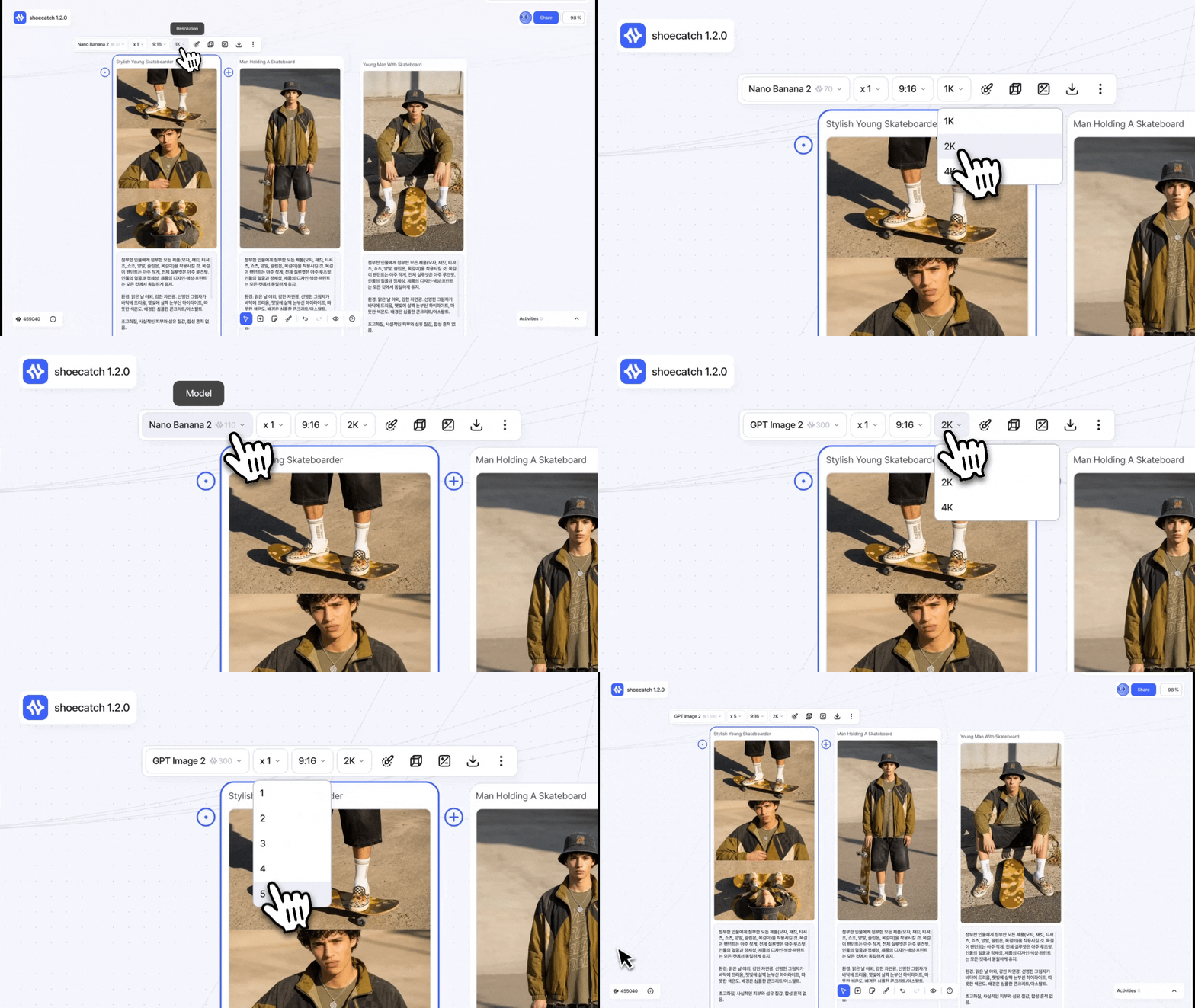
The estimated credit cost updates from the selected options and number of results. When you switch models, any unsupported setting changes automatically to the closest combination supported by the new model. Review the updated options and estimated credits before running the node.
Edit Tools
Image Nodes include Edit Tools for refining generated results or converting them into formats for later work.
Edit Brush: Select and edit a specific area of an image.
Remove Background: Remove the background from an image.
Upscale: Improve image resolution and detail.
Vectorizer: Convert an image into a vector result.
Multi Angles: Generate new nodes for selected viewing angles.
For detailed instructions, see the Editing Tools section.
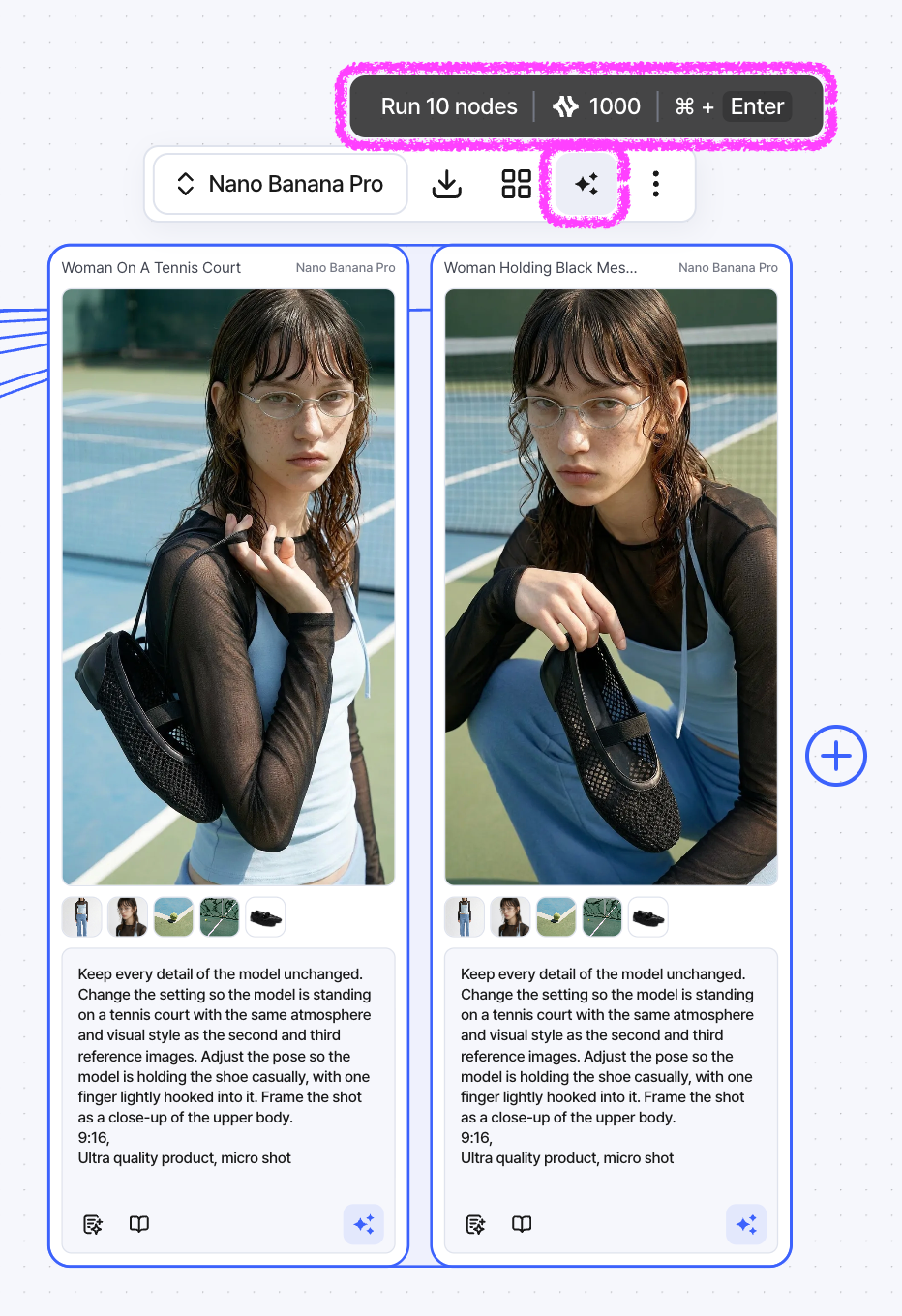
Run multiple nodes
Select multiple image, video, or text generation nodes and use Run All to run them together.
Before running, review the estimated number of results and required credits. If the selected nodes are the same type, you can set a compatible AI model for all of them at once.
Node Locking
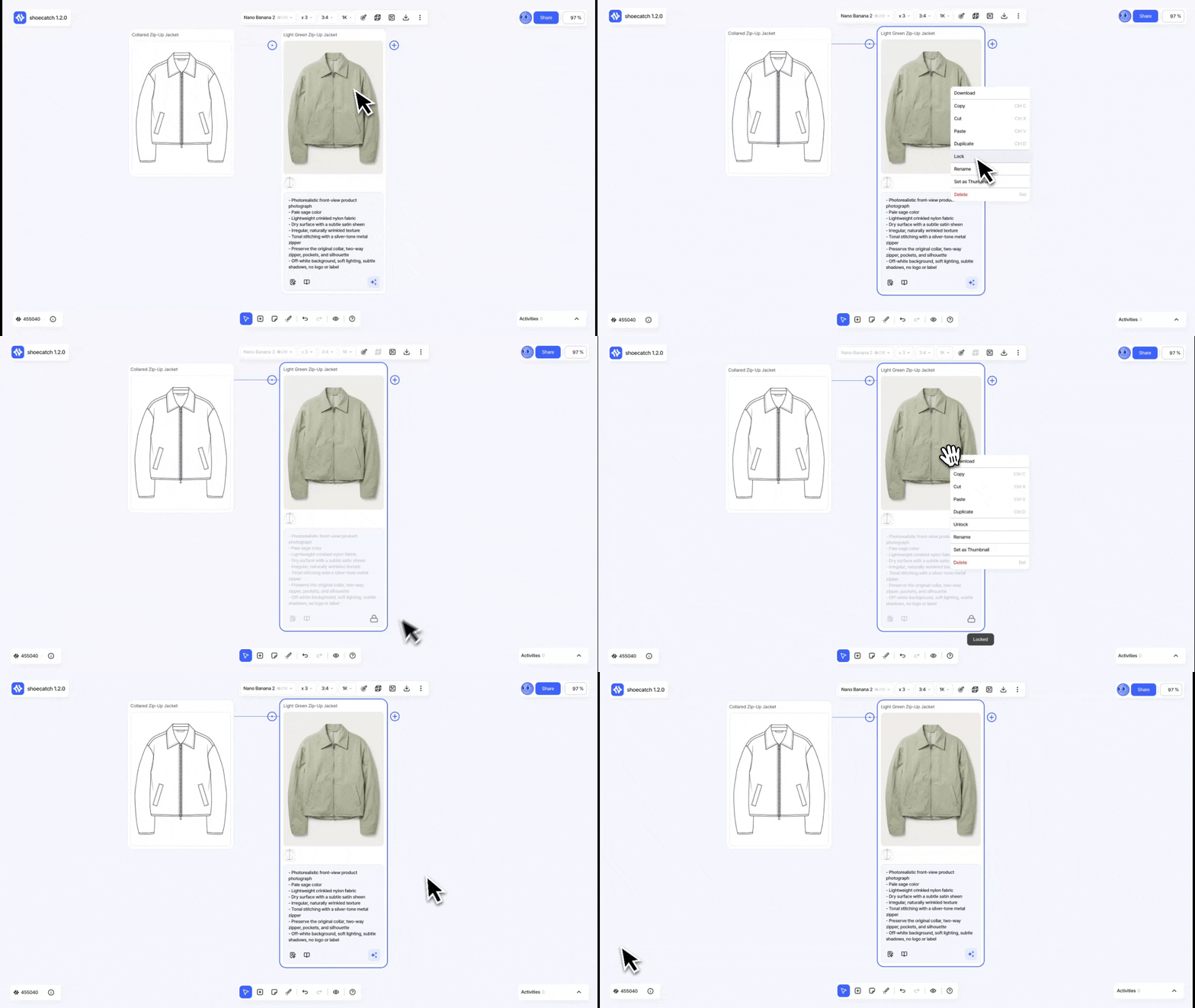
Lock a generation node to protect a completed setup or prevent an accidental generation.
While a node is locked, you cannot edit it, change its generation options, or run it. Unlock the node before making changes.
When a generation fails
Generation errors identify whether the request was blocked by input safety checks, refused by the model, interrupted by a server error, or stopped by another general failure.
Read the description and suggested next step shown with the error. If the issue continues, contact support@shoecatch.ai and include the error message.