Canvas Overview
Canvas Basics
A canvas is a flexible workspace in ShoeCatch.
You can create and connect nodes on the canvas to build your own design workflow.
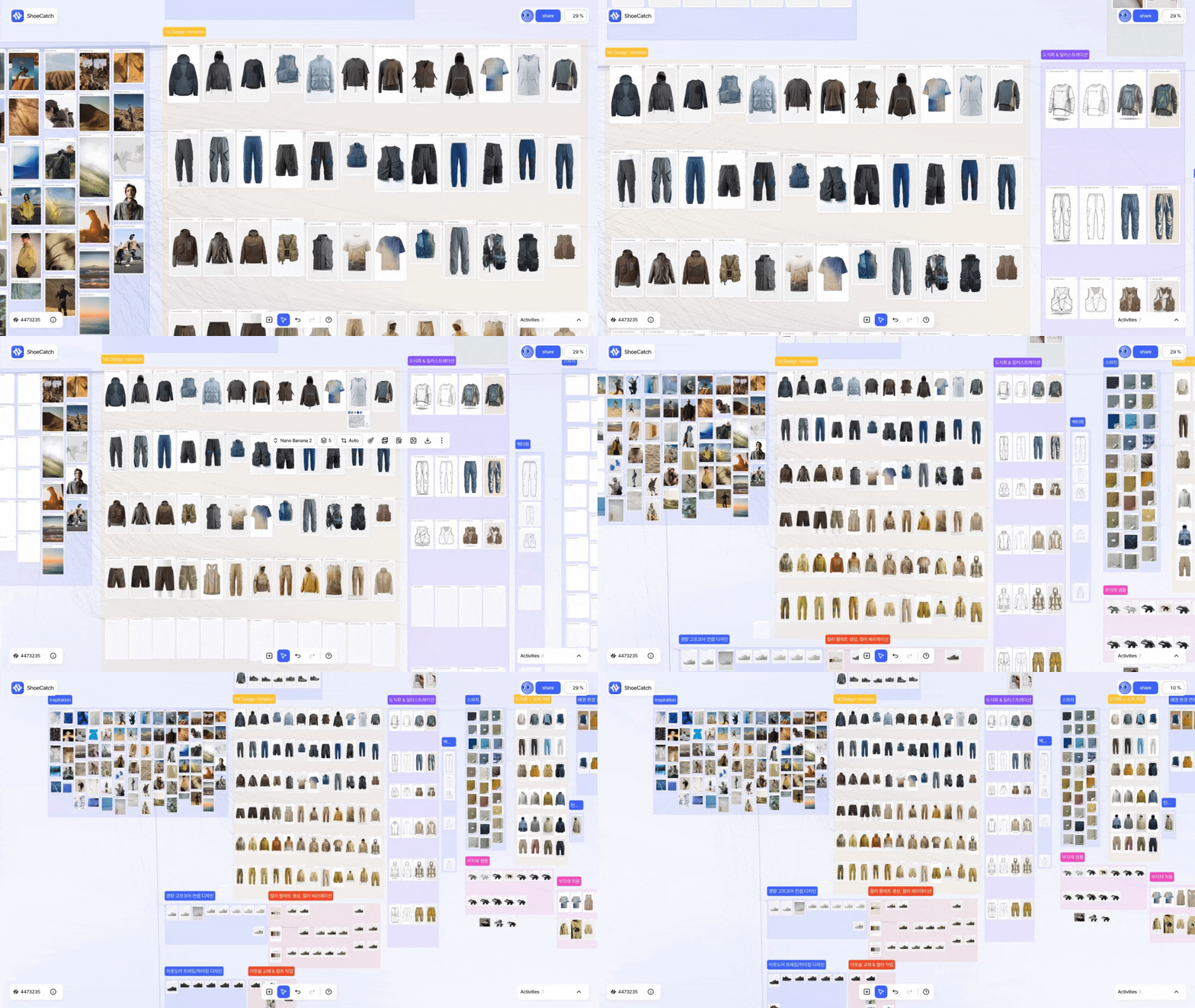
You can use dozens of text, image, and video models within a single canvas.
This helps you explore multiple creative directions in one place without switching between different tools.
Canvas Templates
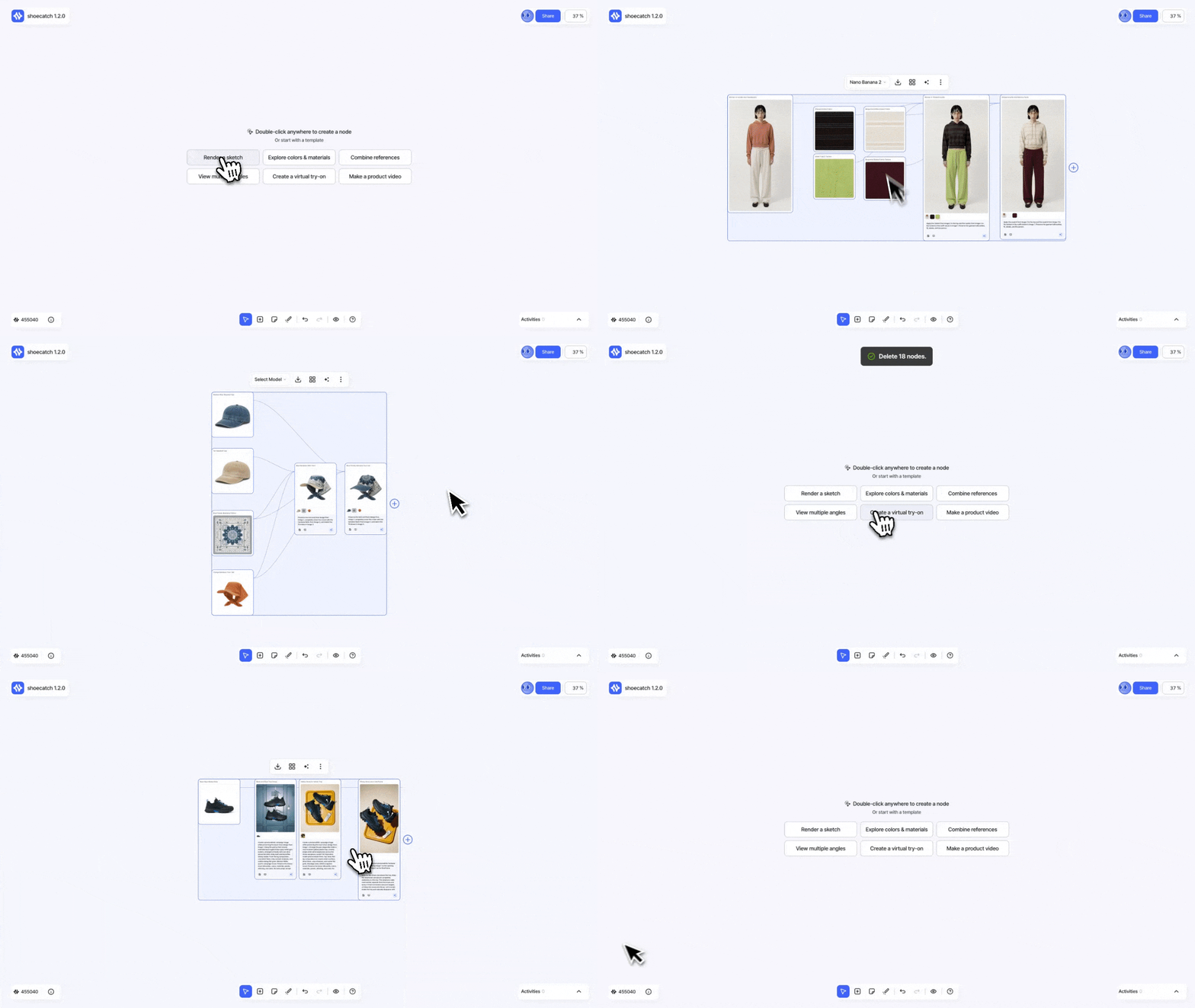
Canvas Templates provide ready-made starting points for common footwear design workflows. They appear on an editable Canvas when it has no nodes.
Double-click the empty Canvas to add a node as usual, or select a template to load an editable copy directly into the current Canvas. If you delete the last node, the empty state and template choices appear again.
ShoeCatch shows only the template version that matches your current UI language. Loading a template does not use credits. Credits are used only when you run generation nodes in the copied workflow.
Creating and Connecting Nodes
Creating Nodes
Double-click anywhere on the canvas, or select Add Node from the canvas toolbar to add a text, image, video, or resource node.
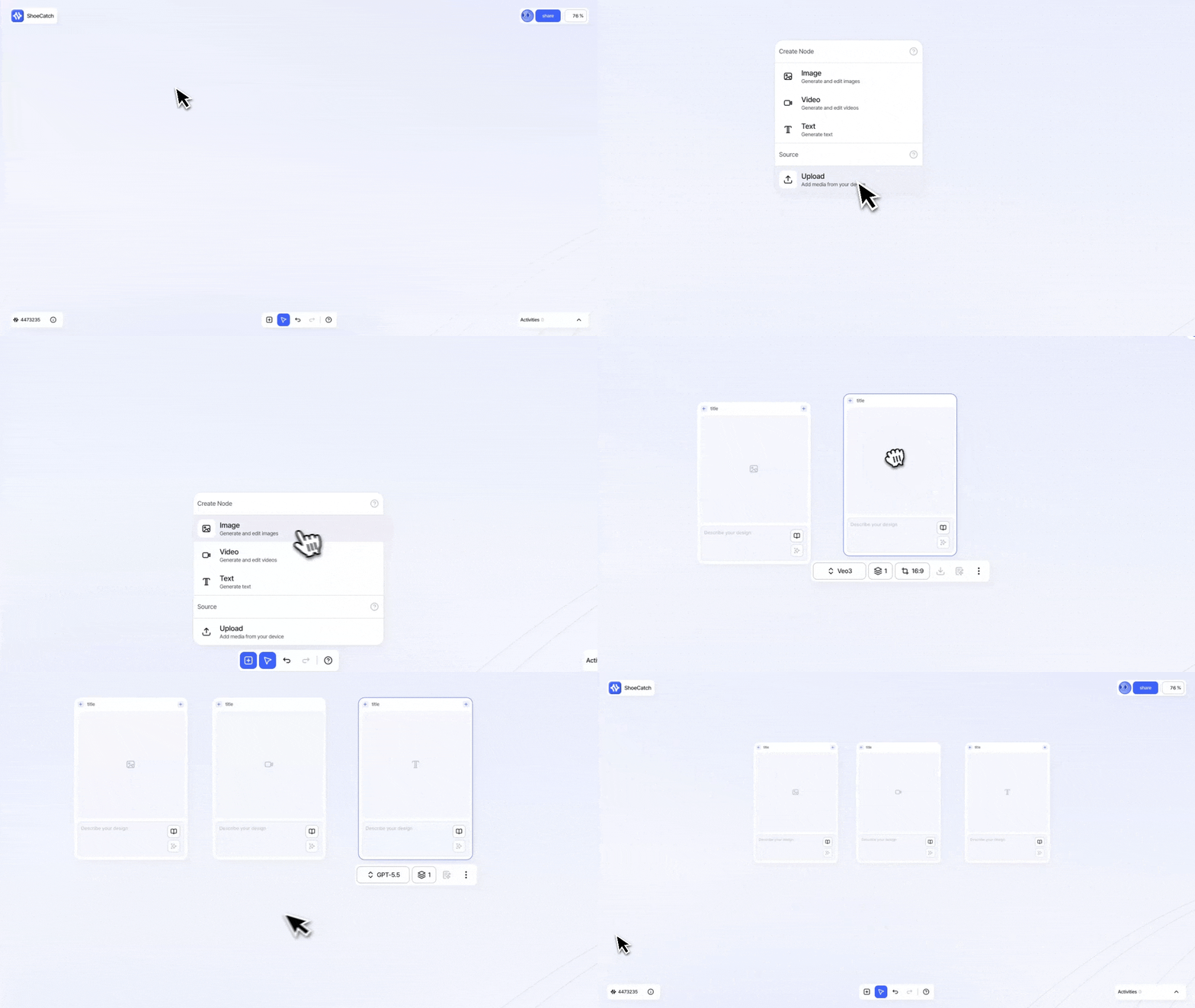
Available node types include Text Node, Image Node, Video Node, and Resource Node.
For more details about each node type, see the Node Overview section.
Connecting Nodes
Drag the + handle on the right side of a node and connect it to the + input handle on the left side of another node.
The connected node will be used as input for the next generation task.
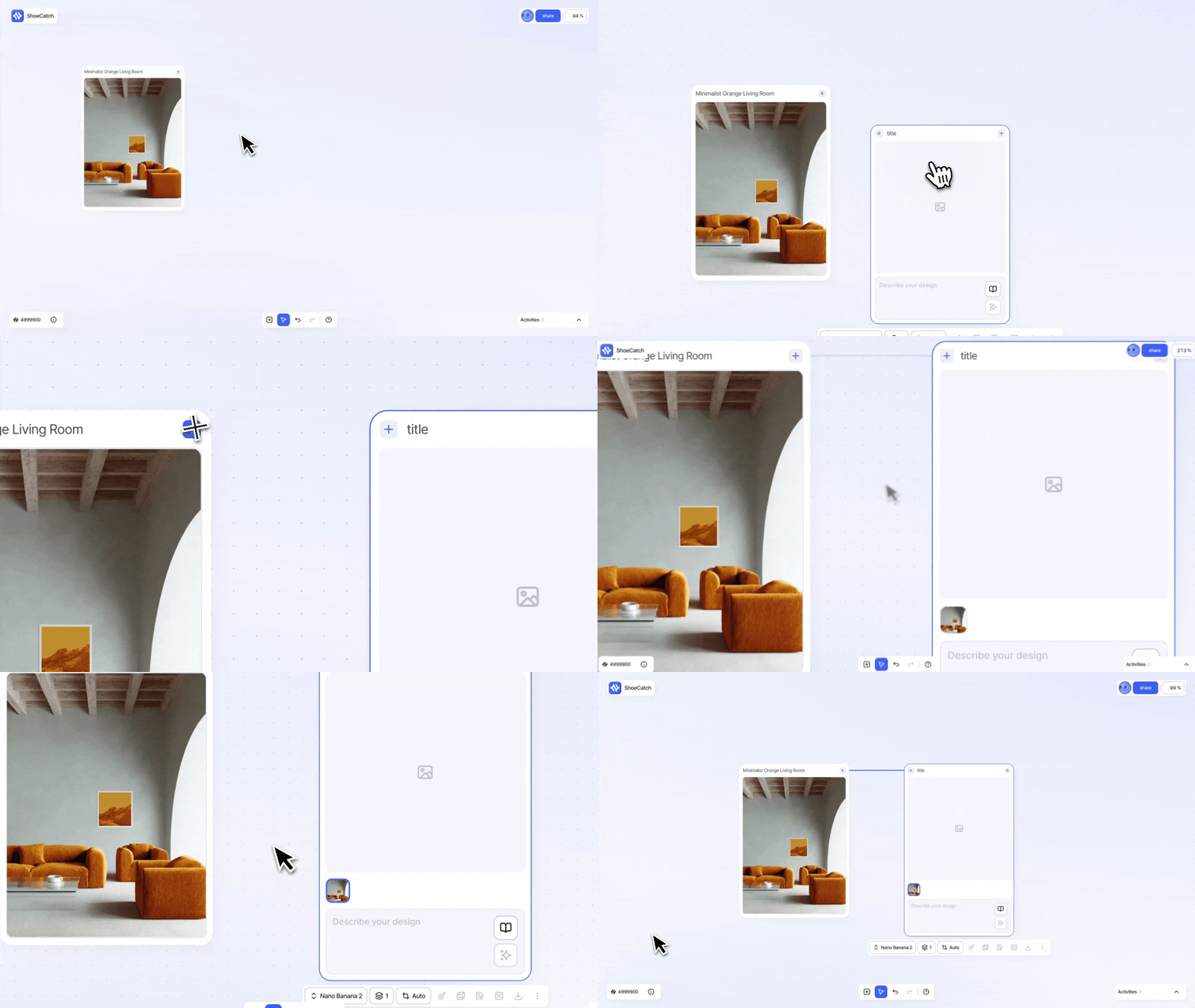
To connect multiple images at once, select the image nodes you want to use, then drag the + handle at the center-right of the selected area.
This lets you connect multiple selected images to another node’s input area in one action.
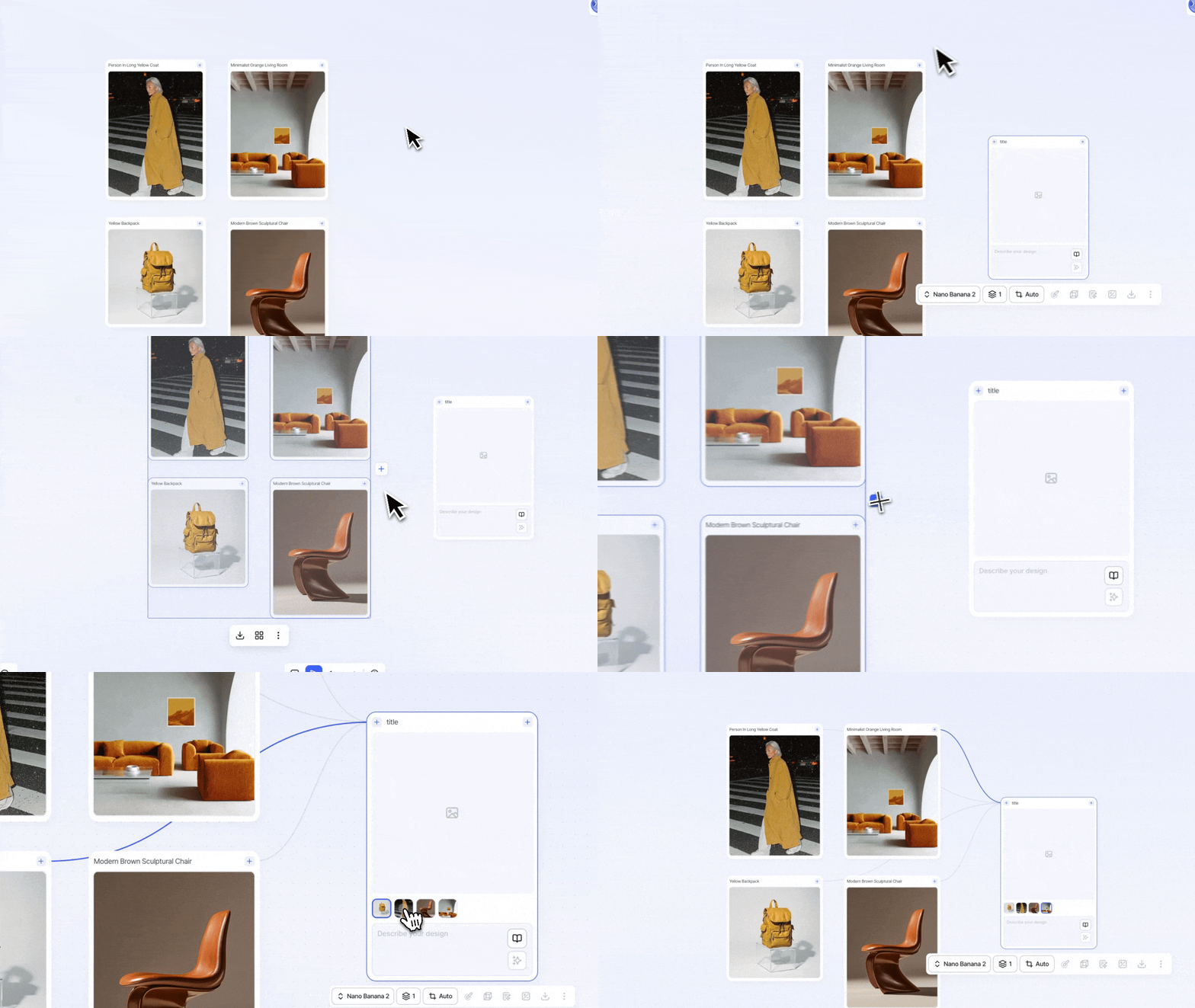
Connection Examples
Resource Node → Image Node
Use an uploaded image as a reference to generate a new image.Resource Node → Video Node
Use an uploaded image as a reference to create a video.Multiple Image Nodes → Image Node
Use multiple reference images together to combine form, style, and color in a new image.
Toolbar
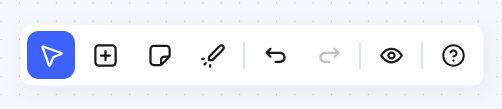
Selection / Pan
Switch between selecting elements on the canvas and moving around the canvas.Add Node
Add an image, video, text, or resource node.Sticky Note
Write a short note and pin it anywhere on the canvas.
Laser Pointer
Let others see the area of the canvas you're pointing at in real time.
Undo / Redo
Undo or redo your previous action.Lens Mode
Switch between Default and Focus mode, which highlights only the selected node and its connections.
Help
Open user docs, the getting started guide, keyboard shortcuts, and support options.
Activities
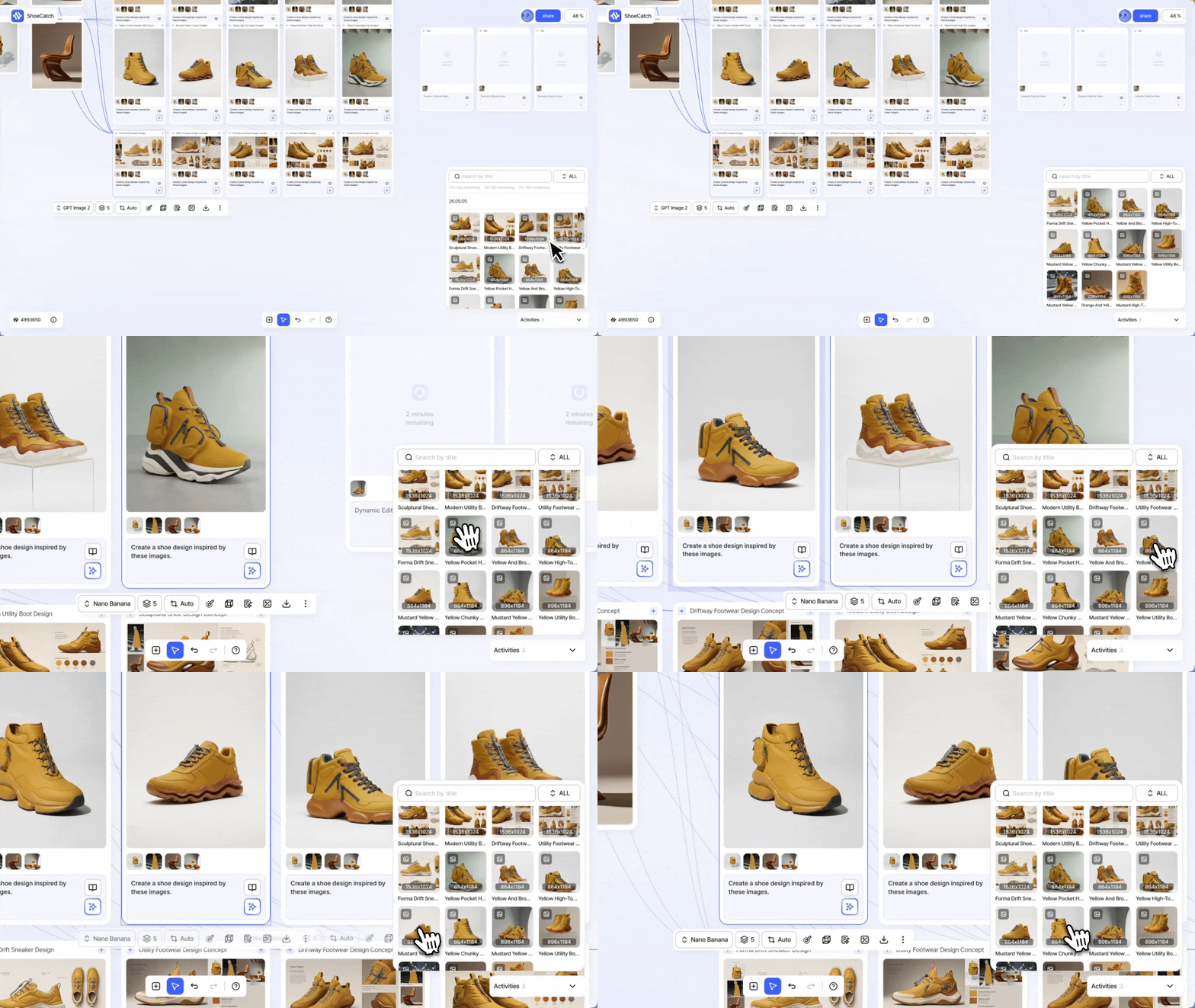
All generation tasks created on the canvas appear in Activities, where you can track their progress.
Text, image, and video generation tasks are displayed in order, and completed results are grouped by creation date.
When an image or video generation is complete, you can view its thumbnail and output dimensions.
You can drag a thumbnail from the generation list back onto the canvas to place the result as a node.
When you click a thumbnail in the generation list, ShoeCatch moves to the original node if it still exists on the canvas.
The node is also highlighted, helping you quickly find your work even on a large canvas.
Autosave
Canvas changes save automatically. Node and connection updates are synchronized without a separate Save action.
If your connection is interrupted while you are collaborating, Canvas re-syncs after you reconnect so changes made by other collaborators appear in the latest state.
Run multiple nodes
Select multiple image, video, or text generation nodes, then use Run All to run them together.
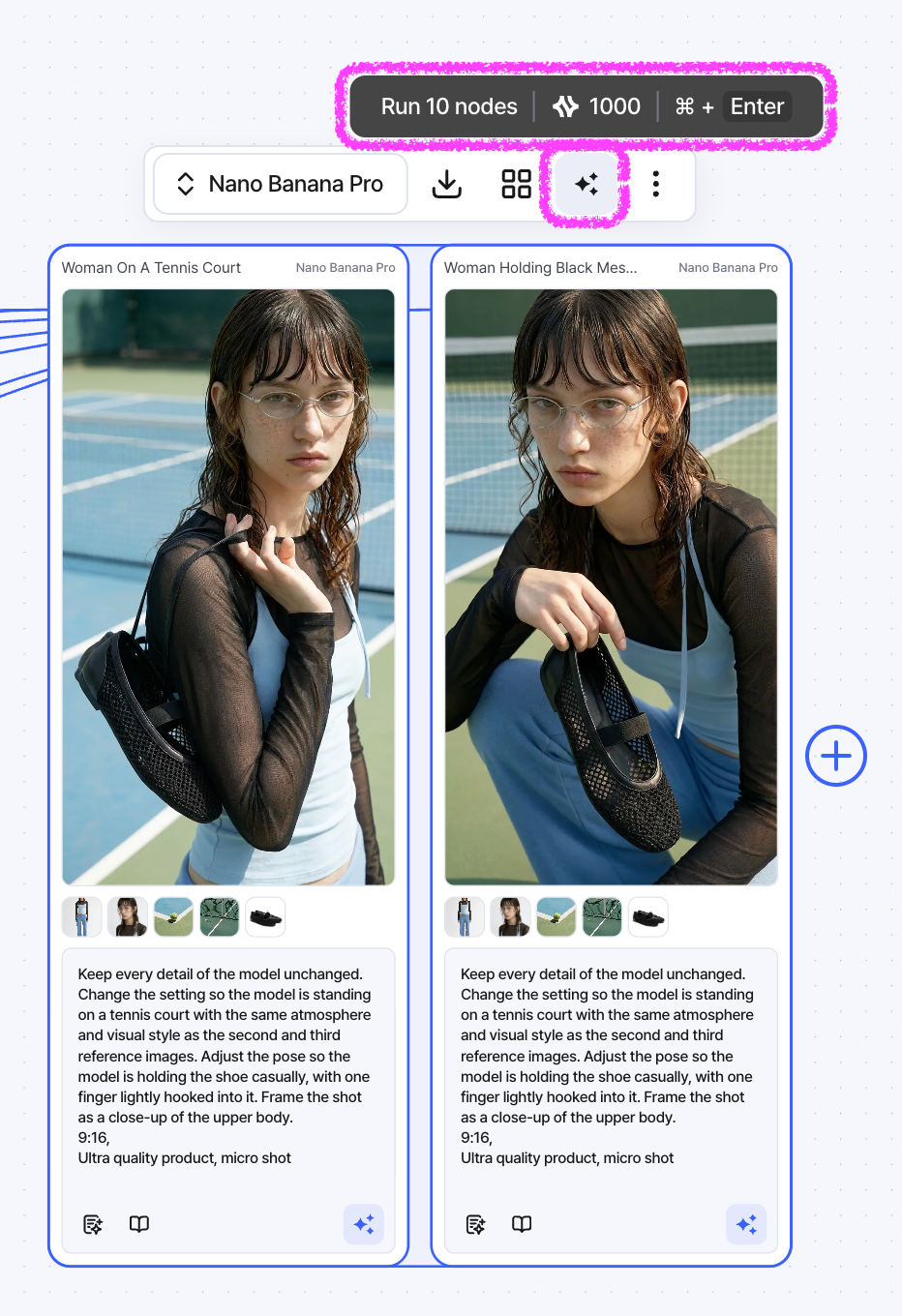
Selecting a group also includes the supported generation nodes inside that group. Before running, review the estimated number of results and required credits.
When the selected nodes are the same type, you can apply a compatible AI model to all of them at once.
Sticky Notes
Select Sticky Note from the bottom toolbar to place a note at the center of the Canvas and start typing.
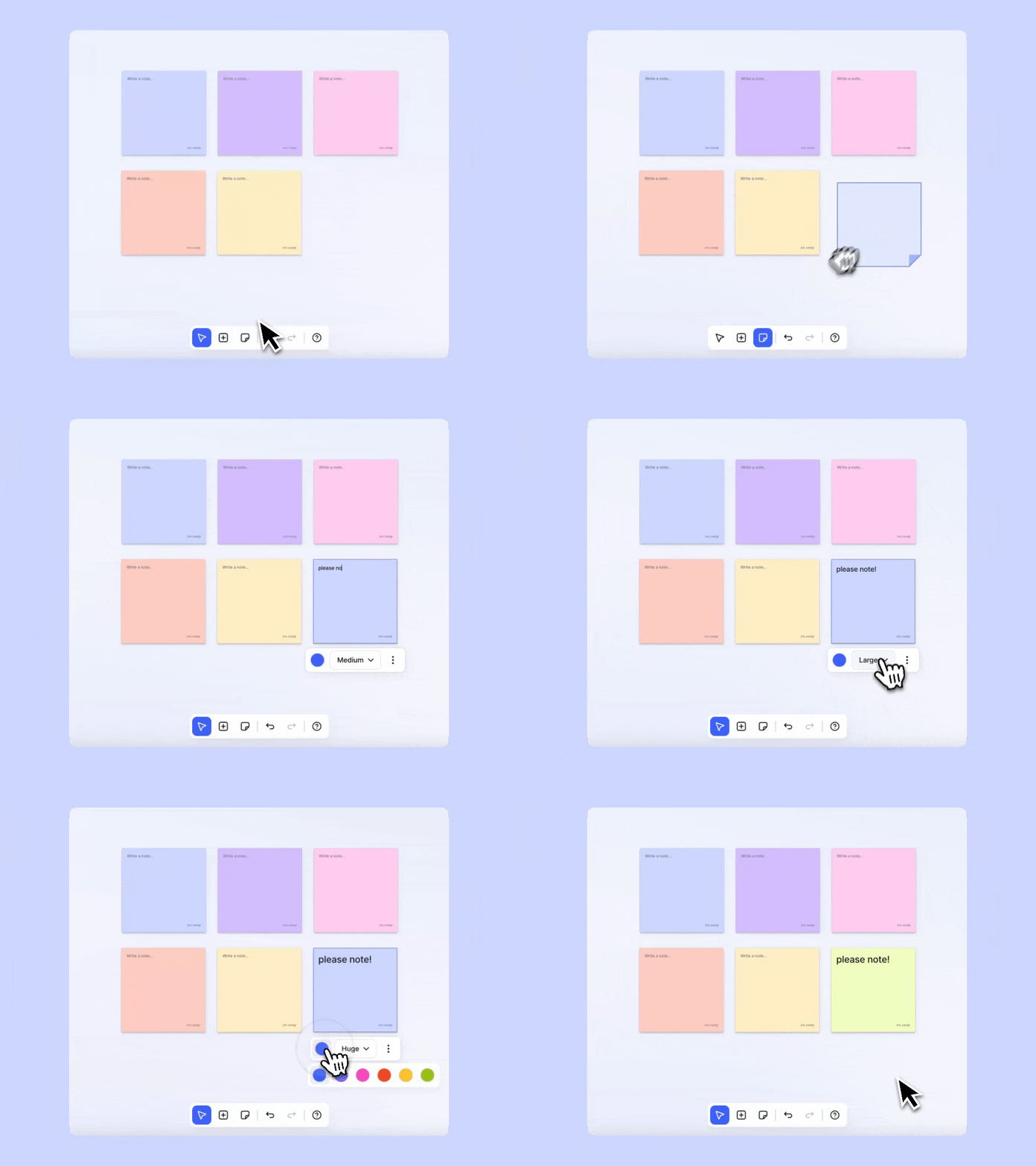
You can edit the text, choose from six colors, select one of five font sizes, duplicate the note, or delete it from the context toolbar.
Sticky Notes support the same selection, movement, grouping, and undo/redo behavior as other Canvas objects. They do not consume credits.