Sharing & Collaboration
Real-time collaboration
ShoeCatch canvases are designed so multiple users can work on the same file at the same time.
Changes appear in real time, so everyone can work while viewing the same state.
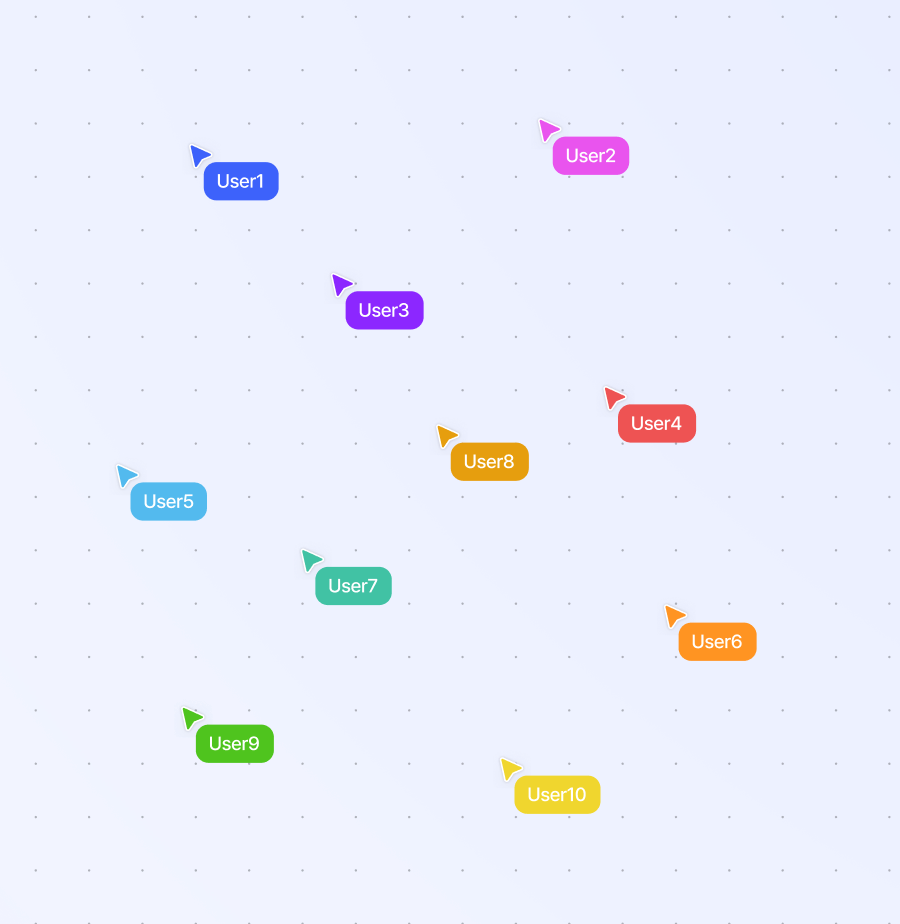
See who is currently connected
Profile images of connected users appear at the top right of the canvas.
You can also see other users’ cursors in real time. Cursor labels use the part of the email address before the @ symbol.
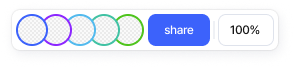
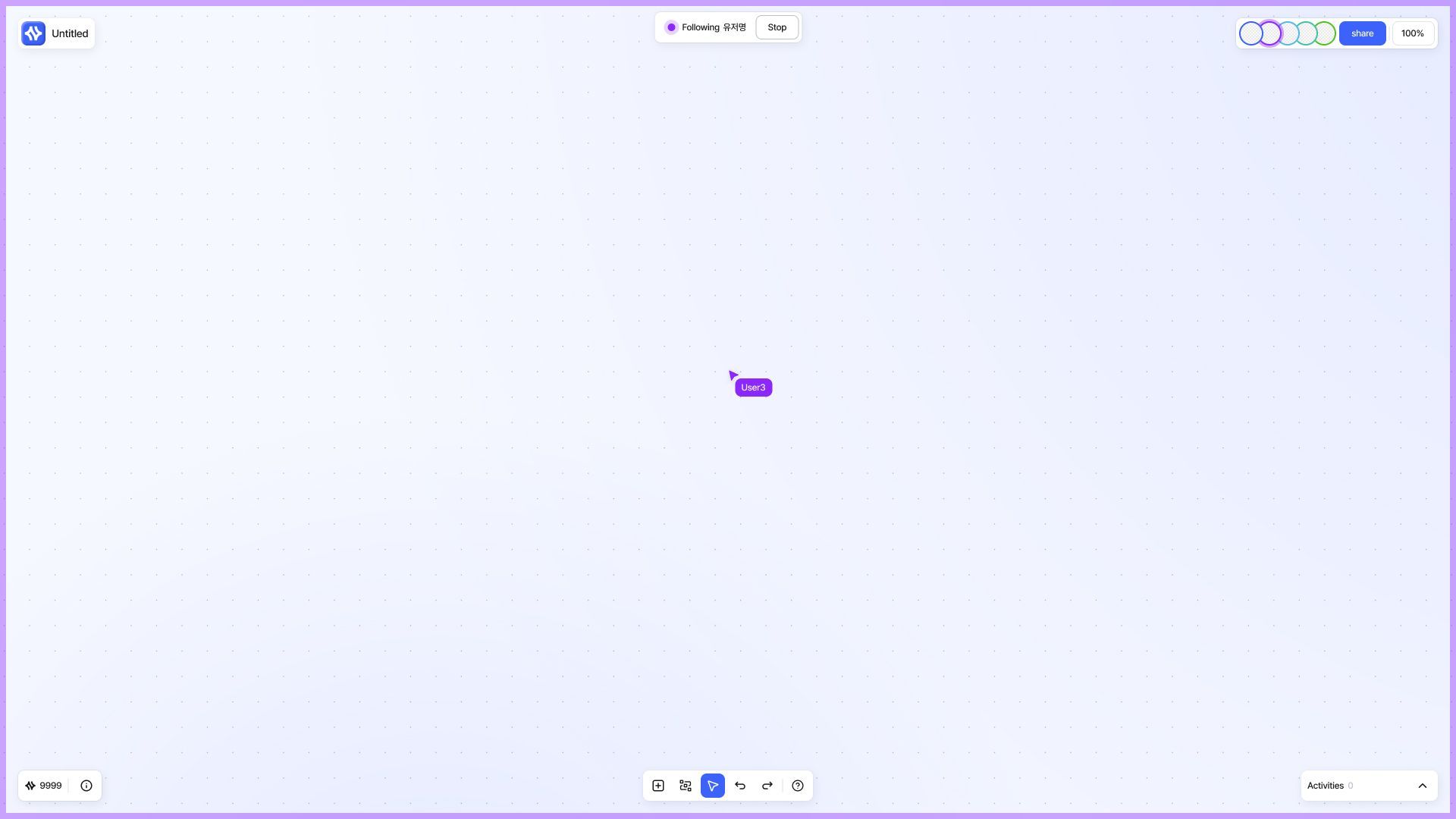
Jump to another user’s view
Click a user’s profile image at the top to move to the viewport they are currently looking at.
Canvas sharing
Canvas sharing lets you grant access to a specific canvas.
You can share only the work that is needed without adding someone to the entire workspace.
Click the Share button at the top right of a canvas to open the sharing modal.
From there, you can use both email invite and link sharing.
Canvas permissions
There are two access levels for a canvas.
Workspace credit usage
Owner / Admin / Member use workspace credits.
Guest may use different credits depending on whether the canvas is in the Workspace area or the Private area.
Canvas in Workspace area → uses the credits of the workspace the canvas belongs to
Canvas in Private area → uses the credits of the Guest’s own workspace
Edit permission still requires credits
Even if the link option is Anyone with link can edit, actions that incur cost still require available credits.
Sharing a canvas by email
In the sharing modal, enter an email address and choose a permission level to invite a specific user directly.
This gives that user individual access regardless of the current link sharing setting.
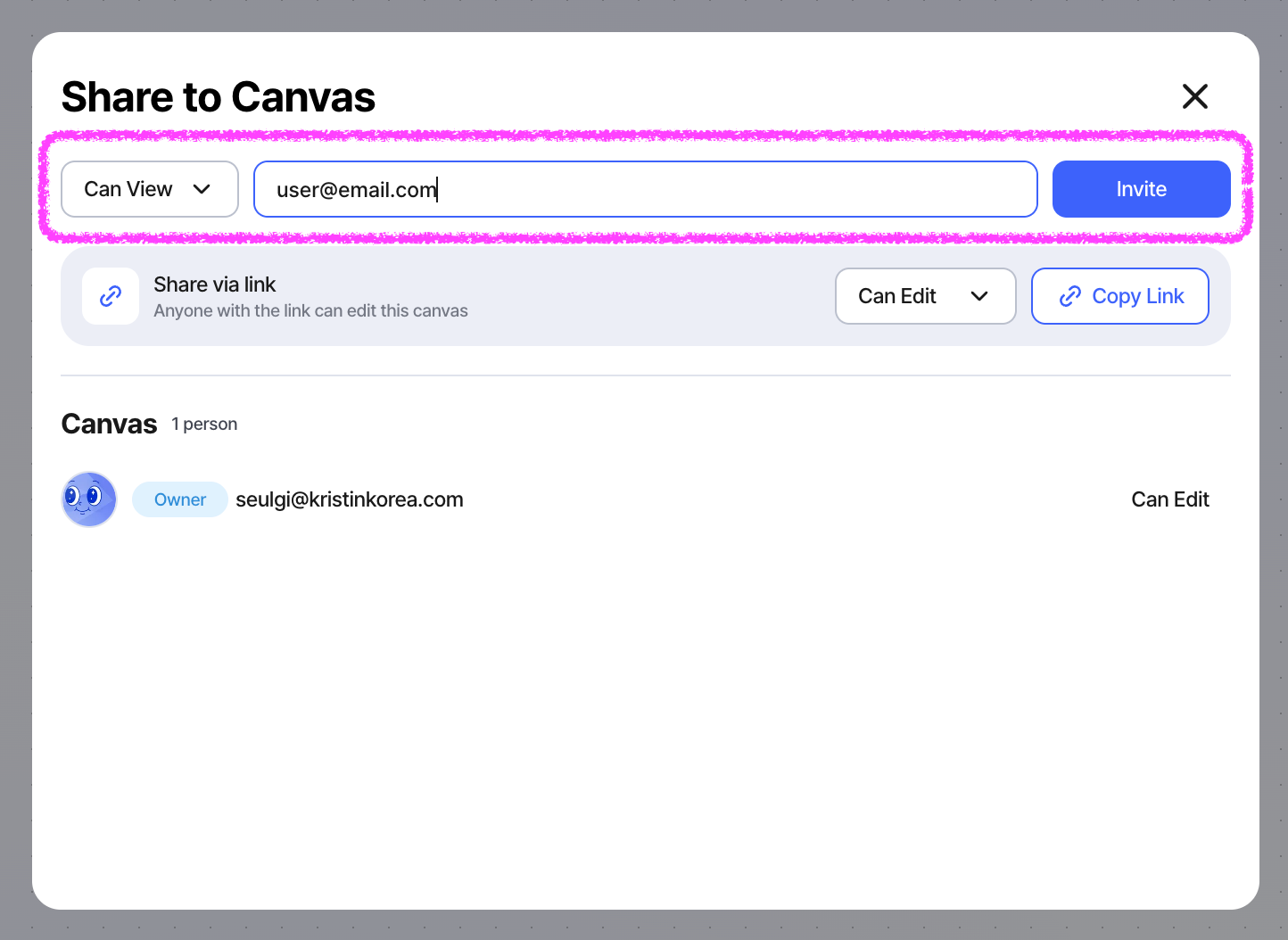
Email-based sharing is useful when:
you want to invite only specific people
you want to give access to exact users without sending a public link
you want to manage permissions person by person
Sharing a canvas by link
In the sharing modal, you can set the link access level.
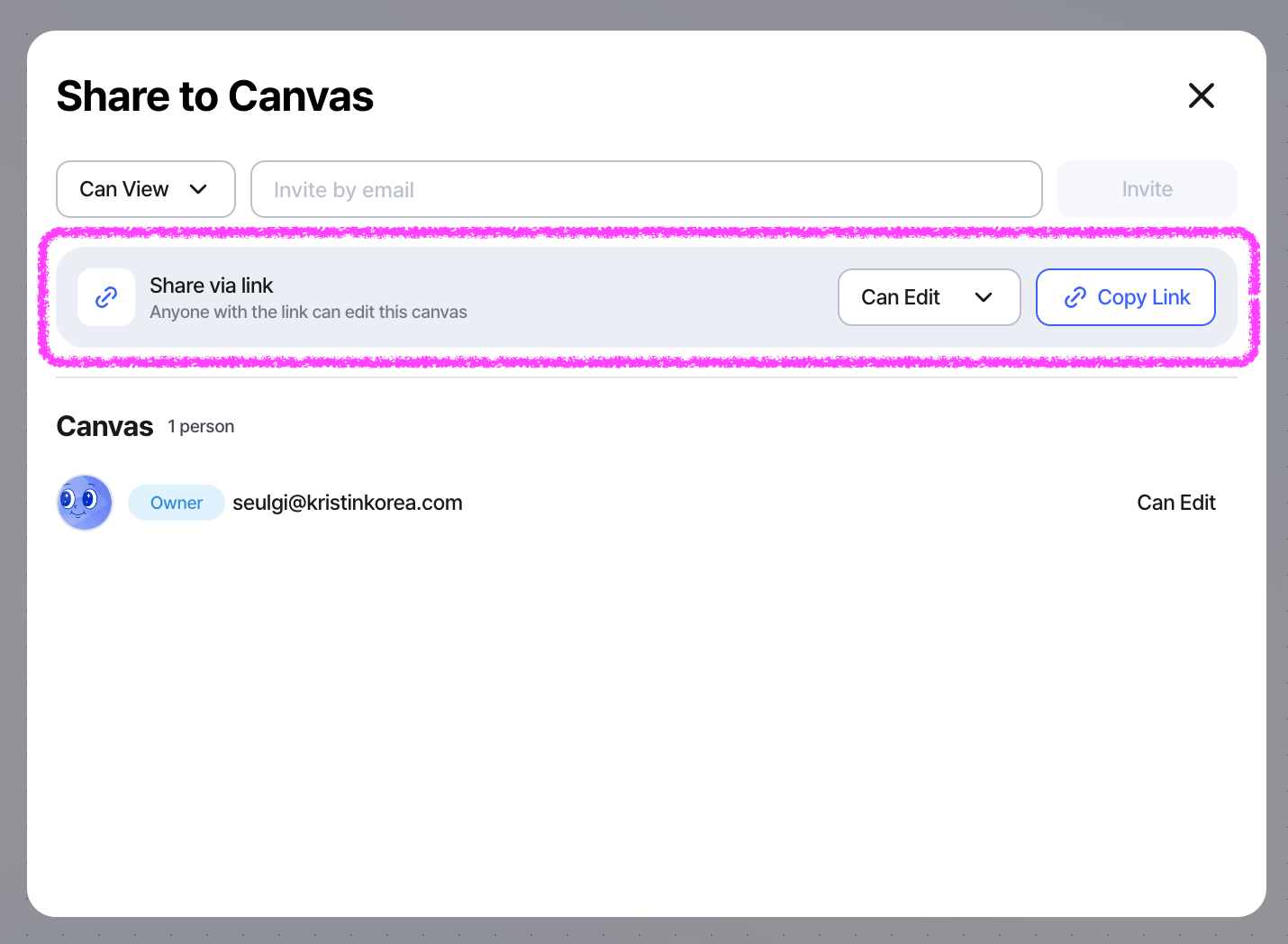
There are three available options:
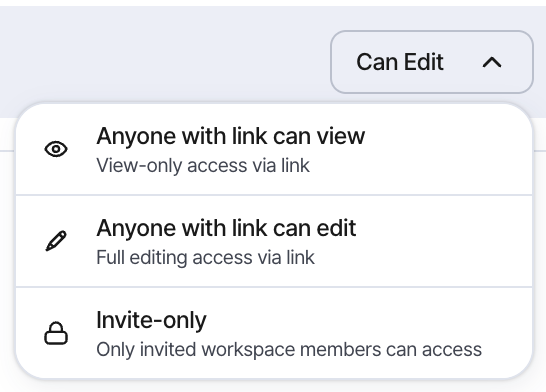
Invite-only
The canvas cannot be accessed by link alone.
Only directly invited users can open it.
Anyone with link can view
Anyone with the link can access the canvas with view permission.
Anyone with link can edit
Anyone with the link can access the canvas with edit permission.
After selecting an option, click Copy Link to share the link.
What you can do in the sharing modal
In the sharing modal, you can manage the following:
view the list of users who currently have access
change or remove access for guest users
update link sharing settings
copy the canvas link
The list may show both each user’s workspace role and canvas permission.
Owner / Admin / Member are workspace members, so they are shown as users with edit access by default.
Guest users are shown based on the specific permission granted to them.
Which sharing method should you use?
Notifications
Select the bell icon at the top of the sidebar to review workspace invitations and Canvas shares from the last 30 days. Unread notifications are marked with a red dot, and the newest notification appears first.
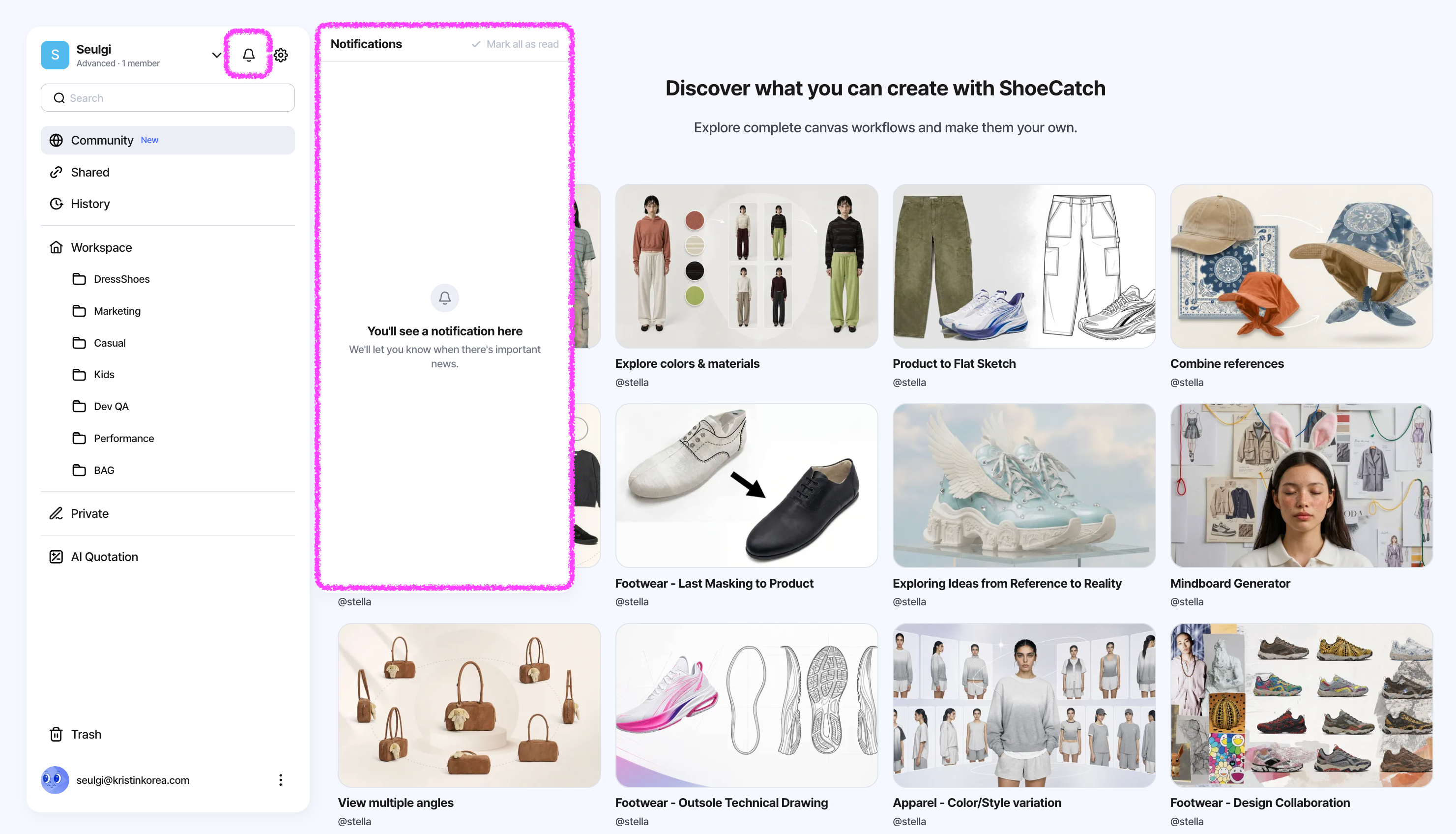
Opening the panel does not mark notifications as read. Use Mark as read, Mark as unread, Mark all as read, or Dismiss to manage the list. Dismissing a notification removes only the notification; it does not remove the workspace or Canvas.
If an invitation was canceled, already processed, or its workspace or Canvas is no longer available, ShoeCatch tells you that the invitation is no longer valid.